ZIP, EXE, MSI, protected bucket, or delivery API options
NeonRoof for Unity Developers
Take your Unity build from project folder to player library
Submit a validated Windows package, explain input and graphics requirements, and keep updates tied to one storefront across the web and launcher.
Package and launcher behavior documented before release
Storefront metadata shared across the web and launcher
Free assisted publishing with your build and artwork
Turn the tested Windows build into a dependable download
Unity releases should be uploaded as the complete working build, including the executable, data folder, plug-ins, and any required runtime files. The listing then explains controls, graphics requirements, save locations, and first-launch behavior for players.
Start the Unity publishing pathDescribe the game, not merely the engine
Unity can power almost any genre, so player discovery should focus on the experience first. Engine information is still useful for technical expectations, modding notes, accessibility, and developers specifically looking for Unity-made PC games.
Prepare a stronger Unity listing
- Test a clean Windows build outside the Unity project directory
- Include every data, plug-in, localization, and runtime dependency
- Identify the correct executable and command-line requirements
- Document graphics API, controller, display, and save behavior
- Upload versioned builds and preserve rollback information
Tested Windows release workflow
Package a Unity Windows build that works outside the Editor
NeonRoof needs the complete player build, not the Unity project folder. Keep the executable, Data folder, UnityPlayer library, plug-ins, and runtime dependencies together so the same tested package reaches every player.
- Create a Windows 64-bit release build in a clean output folder.
- Keep the EXE, matching Data folder, UnityPlayer.dll, plug-ins, and dependencies together.
- Copy that folder away from the project and test it from a clean Windows account or machine.
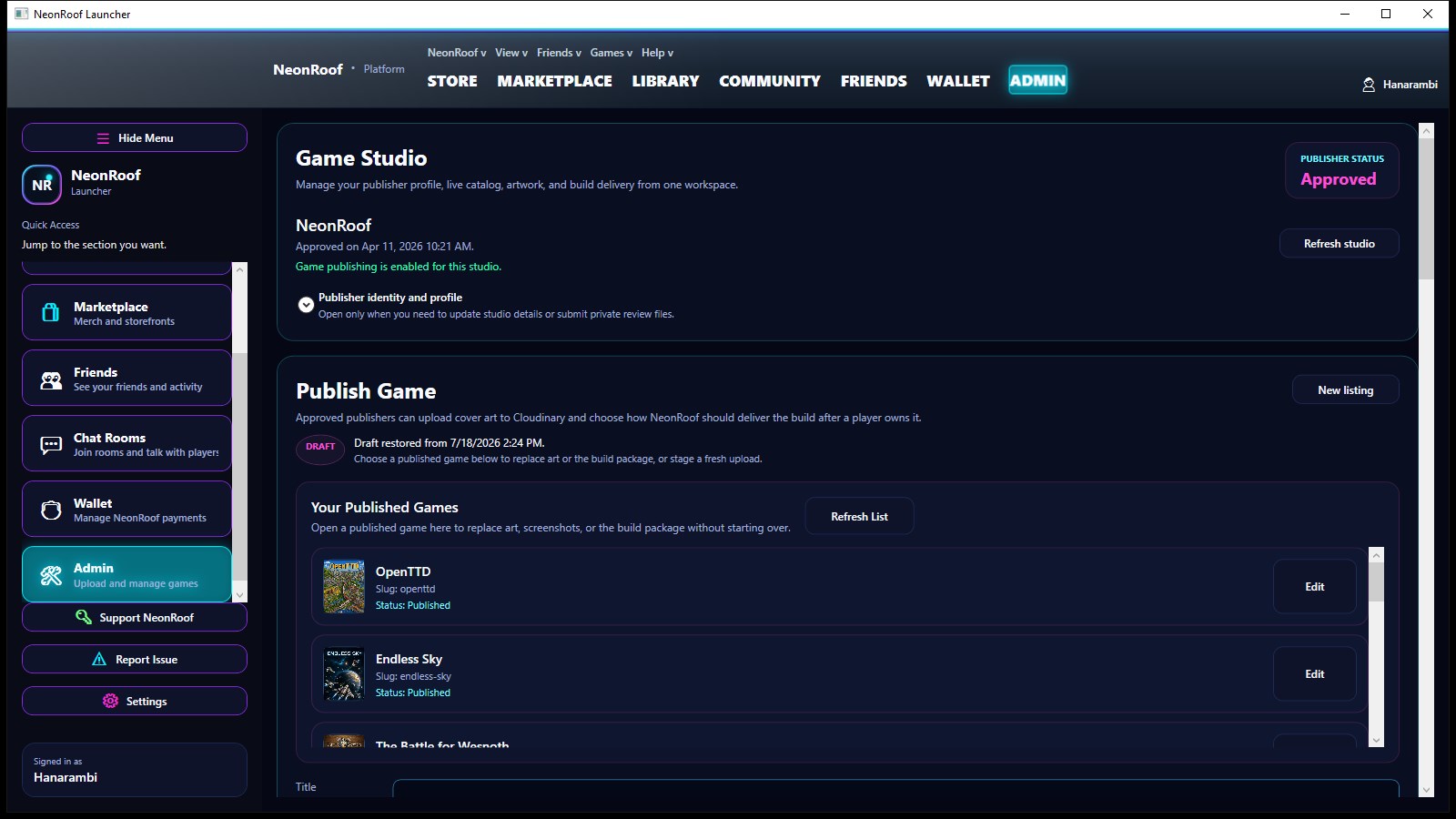
- ZIP the output root, identify the launch EXE, then add the build and storefront media in NeonRoof Game Studio.
Check the engine vendor's current instructions before packaging: Unity Manual: Windows build files.
A real search result for your game and your studio
NeonRoof creates a permanent public game page with descriptive copy, canonical metadata, Open Graph and X cards, structured data, screenshots, a trailer, system requirements, support links, and clear download or purchase details.
Your studio also receives a public developer page that can collect its biography, website, social links, released games, future releases, game artwork, and related NeonRoof News coverage.
Prepare the listing while KYC is reviewed
Verified developer accounts can prepare titles while publisher identity review continues. Publishing unlocks after the required identity checks are approved, and paid sales also require Stripe payout readiness.
That keeps the release moving without pretending payment compliance is optional.
Send the build and art. We will assemble the listing.
If the publishing tools get in the way, submit the binary, cover art, banner, up to seven gameplay images, YouTube trailer, contact details, and KYC information. NeonRoof will publish the catalog entry for free and email you when it is live.
Open free assisted publishingDeveloper onboarding
From account to live storefront
- Create and verify a developer account.The same account works on neonroof.com and in the Windows launcher.
- Add your studio and contact details.Your public studio profile and private KYC record are kept separate.
- Complete Game Studio identity review.You can prepare the listing while review runs; publishing unlocks after approval.
- Use Game Studio or ask us to do it.Either path creates the same catalog entry across the website and launcher.
More publishing paths
Find the page that fits your game
Developer questions
Unity publishing FAQ
Can I prepare a Unity game while KYC is pending?
Yes. A verified developer account can prepare the listing while identity review continues. Publishing requires KYC approval, and paid checkout also requires completed Stripe payout onboarding.
What should I prepare for my Unity storefront?
Unity releases should be uploaded as the complete working build, including the executable, data folder, plug-ins, and any required runtime files. The listing then explains controls, graphics requirements, save locations, and first-launch behavior for players.
Can NeonRoof publish the game for me?
Yes. NeonRoof offers free assisted publishing when the developer supplies the build, required artwork, gameplay images, trailer, contact details, and identity information.
Ready to put Unity on NeonRoof?
Start the normal onboarding flow, ask NeonRoof to publish the game for you, or submit it to the News desk first.